
How to Remove Hardcoded Subtitles from a Video
By the MagicRemover team · October 23, 2026 · 10 min read
In short
Hardcoded subtitles are drawn into the video’s pixels, so no player setting, converter or remux can switch them off: you either hide them (crop, cover, blur) or rebuild the picture underneath with AI. Check first, though. If your player’s subtitle menu turns them off, or ffprobe lists a subtitle stream, they are soft subtitles, and one ffmpeg command strips them in seconds with no quality loss. For genuinely burned-in captions, cropping and blurring are free but leave a visible trace; AI inpainting leaves no band but costs credits and several minutes of processing per clip.
Hardcoded subtitles — also called burned-in or open subtitles — are captions rendered into the frames of a video, so they are part of the picture itself rather than a separate track a player can turn off. Soft subtitles are the opposite: a text track stored alongside the picture, in the same file or in a sidecar .srt, which the player draws on top at playback time.
We build MagicRemover, which sells an AI tool for the hard case, so weigh our framing accordingly. But a large share of people searching for this don’t need AI at all: their subtitles are soft, and removing them takes one command and a few seconds. The first job is to find out which kind you have.
Every command in this guide was run on test clips with ffmpeg 7.1.1 before we published it. The numbers assume a 1920×1080 video with captions in the bottom 140 pixels; adjust them to your own frame.
Soft or hardcoded? Three checks before anything else
Whether subtitles are a track or pixels decides everything that follows, and you can find out in under a minute.
1. Turn them off in the player
Open the subtitle or CC menu and switch subtitles off. If the text disappears, it was a soft track and you are done. If there is nothing to switch off and the text stays, keep checking.
2. Look for a file next to the video
A file with the same name and an .srt, .ass or .vtt extension in the same folder is a sidecar subtitle file. Some desktop players, VLC among them, load a same-named file automatically, which makes it look embedded. Rename or move it and reopen the video.
3. Ask ffprobe what’s inside
ffprobe -v error -select_streams s -show_entries stream=index,codec_name:stream_tags=language -of csv=p=0 input.mkvEach line it prints is one subtitle stream — its index, format and language, for example 2,subrip,eng. No output at all means the file carries no subtitle streams, so any text you can still see on screen is burned in.
One trap: a file can have both. A fan release may carry an English soft track and on-screen signs burned into the picture; a social clip may have toggleable auto-captions on top of the creator’s own baked-in captions. Strip the track first, then see what is left.
Soft subtitles: strip the track, no AI and no quality loss
Removing a soft subtitle track is a remux, not an edit: the video and audio are copied byte for byte into a new file, just without the subtitle stream.
ffmpeg -i input.mkv -map 0 -map -0:s -c copy output.mkv-map 0 selects every stream in the input, -map -0:s then removes all subtitle streams from that selection, and -c copy tells ffmpeg not to re-encode anything. It finishes in seconds even on a long file, because nothing is decoded. The same command works on an MP4 whose subtitles are a mov_text track; just change the extensions to .mp4.
To drop only one track — keep the French subtitles and lose the English ones, say — exclude it by its position among the subtitle streams. s:0 is the first subtitle stream, s:1 the second:
ffmpeg -i input.mkv -map 0 -map -0:s:0 -c copy output.mkvIf you would rather not use a command line, MKVToolNix does the same remux with a graphical interface. Its command-line tool, mkvmerge, documents a --no-subtitles switch that does what the name says: it copies no subtitle track from the file. A sidecar file is simpler still — delete or rename it, and the video itself was never touched.
Hardcoded subtitles: four free ways to deal with pixels
Burned-in subtitles can only be hidden or painted over, and every free method gives up some of the picture to do it. All four commands below re-encode the video, so the picture passes through the encoder once more; -crf 18 keeps that generation loss low, and -c:a copy passes the audio through untouched.
1. Crop the strip off
ffmpeg -i input.mp4 -vf "crop=iw:ih-140:0:0" -c:v libx264 -crf 18 -c:a copy output.mp4On our 1080p test clip this produced a 1920×940 video. Nothing is invented and nothing is smeared, but the frame is no longer 16:9, so a player or platform will add bars or crop it again — and anything else in the bottom of the shot, such as a speaker's hands, leaves with the captions.
Use it when: The bottom of the frame is empty and the destination doesn't care about aspect ratio.
2. Cover it with a bar
ffmpeg -i input.mp4 -vf "drawbox=x=0:y=ih-140:w=iw:h=140:color=black:t=fill" -c:v libx264 -crf 18 -c:a copy output.mp4The old captions are gone and you get a clean black band to lay new subtitles on, which is why translators often use it. It reads as a deliberate design choice rather than a failed repair, and it keeps the frame size.
Use it when: You are about to add new subtitles in the same place anyway.
3. Blur the strip
ffmpeg -i input.mp4 -filter_complex "[0:v]crop=iw:140:0:ih-140,boxblur=20[b];[0:v][b]overlay=0:H-140" -c:v libx264 -crf 18 -c:a copy output.mp4This keeps the frame size and the colours of the scene, but the blur itself is visible, and on our test clip a 20-pixel box blur still left the shape of the words faintly readable. Raise the radius and the band gets more obvious; lower it and the text comes back.
Use it when: The captions sit over something already soft — a dark floor, an out-of-focus background.
4. Interpolate over it with delogo
ffmpeg -i input.mp4 -vf "delogo=x=1:y=939:w=1918:h=140" -c:v libx264 -crf 18 -c:a copy output.mp4The delogo filter fills the box by interpolating from the pixels around its edge. On a flat background that is nearly invisible; over detail it becomes a smeared band of colour, which is what we got across a test pattern. The box must sit at least one pixel inside the frame: a box that starts at x=0 or touches the bottom row fails with “Logo area is outside of the frame”, which is why this one starts at x=1 and y=939.
Use it when: The captions are small and the background behind them is plain.
| Method | Visible trace | Frame size | Cost |
|---|---|---|---|
| Crop | None inside the frame — the frame itself shrinks | Changes (1920×1080 → 1920×940) | Free |
| Black bar | An obvious band | Unchanged | Free |
| Blur | A soft band; words can stay faintly readable | Unchanged | Free |
| delogo | A smeared band over detailed backgrounds | Unchanged | Free |
| AI inpainting | Usually none; occasional residue on hard frames | Unchanged (our tool returns up to 1080p) | Credits and minutes of processing |
The AI route: rebuilding the picture under the text
AI inpainting is the only method that leaves no band, because instead of hiding the text it paints a plausible picture where the text was. A video subtitle remover finds the caption region in each frame, erases the lettering, and reconstructs what was behind it from the surrounding pixels and neighbouring frames — when the camera or the scene moves, the background a caption covers in one frame is often visible in another. Then it re-encodes the clip.
The result is a reconstruction, not a recovery. Where a caption covered something no frame ever shows, the model fills in an educated guess — the same principle we explain for still images in what AI inpainting actually does. On MagicRemover’s video subtitle remover the process takes three steps:
- 1
Sign in and upload
Sign in with Google, then drop in an MP4, MOV or WebM. Files over 100 MB are compressed in your browser before upload so they fit the limit; files over 500 MB are refused, so trim very large ones first.
- 2
Tell it what to erase
Choose “Subtitles only” for caption lines, or “All on-screen text” to clear labels and other burned-in text as well. Click “Bottom third” if the captions always sit at the bottom, or drag a box around them yourself. With no box, the whole frame is in scope.
- 3
Confirm and wait
The cost is shown before you start. Processing runs at about 4 minutes per 10 seconds of video, so a 30-second clip takes roughly 12 minutes; keep the tab open. The cleaned MP4 keeps the original audio and timing, comes back at the source resolution up to 1080p, and stays available for 7 days.
It is charged at 2 credits per second of video from the first second — a 30-second clip is 60 credits, and the smallest pack is 330 credits for $9.90. Jobs that fail are refunded automatically. If you want to try it on your own footage before buying anything, the same subtitle remover runs on our sister site VideoTextRemover, where the first 30 seconds of video each month are free after a Google sign-in. It has its own accounts and credits.
Two habits make the biggest difference. Trim the clip to the shots that actually carry subtitles before you upload, because cost and processing time both scale with length. And use the smallest region that covers the captions, so nothing else in the frame is touched. If the text is not a caption line — a channel name in a corner, a label mid-frame — the video text remover is set up for that case.
Only need one frame? Erase it as a still
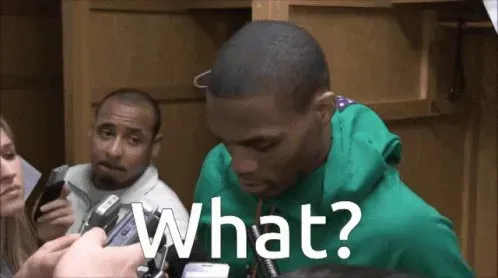
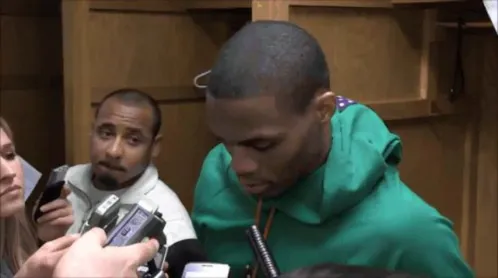
A single frame with a caption is an image problem, not a video one, so you don’t need to process a clip at all. Export the frame, or take a screenshot, and run it through the free image text remover. This is a caption erased from one interview frame that way:
Before & after
Why AI subtitle removal sometimes fails
AI removal fails in predictable places, and spotting them in advance tells you which clips are worth the credits.
Fine detail moving fast behind the text
Captions over sky, a wall or a blurred background vanish almost perfectly. Over foliage, crowds, water or a busy pattern in motion, the model has to invent detail that changes every frame, and a few frames may show faint residue or a shimmering patch.
Captions across faces
A subtitle line that crosses a chin or a mouth forces the model to reconstruct part of a face. Viewers notice small errors in faces far more than in scenery, so these are the shots to check first.
Text that moves or animates
Static lines in the lower third are the easy case. Karaoke highlights, scrolling credits and captions that pop, slide or bounce change shape and position from frame to frame, which makes them harder to erase cleanly in every frame.
Translucent caption boxes
Some captions sit on a semi-transparent dark box. The box tints a much larger area than the letters, so the region to rebuild is bigger — and any edge of the box left outside the region you chose stays visible as a faint rectangle.
Heavily compressed sources
Clips that have been re-uploaded several times carry blocky compression artefacts around the letters that spread past the letters themselves. Those artefacts are part of the picture too; if the region doesn't cover them, they remain as a faint outline of the old words.
How to check the result before you publish it
Check the cleaned video at the moments the subtitles changed, because residue hides at caption boundaries and in single frames that normal playback skips past. Watch it once full screen, then go back to each point where a caption appeared or disappeared in the original and step through it frame by frame. Look hardest at faces, at the edges of the old caption region, and at busy backgrounds.
For a proper look, export stills. Two frames per second is enough to catch a ghost outline, and a 60-second clip gives you 120 images to flick through:
ffmpeg -i cleaned.mp4 -vf fps=2 frame_%04d.pngOr put the original and the cleaned version side by side. This command scales both to 1080 pixels tall first, so a 4K original can be compared with a cleaned copy that came back at 1080p:
ffmpeg -i original.mp4 -i cleaned.mp4 -filter_complex "[0:v]scale=-2:1080[a];[1:v]scale=-2:1080[b];[a][b]hstack=inputs=2" -an compare.mp4If one shot is bad, you don’t have to redo the whole video. Cut that shot out, process it on its own with a tighter region, and splice it back in your editor.
When not to use AI for this
If any clean version of the video exists, use it: real pixels are always more accurate than predicted ones.
You made the video
Re-export from your editing project with the caption layer switched off. It takes a minute and the result is perfect, because nothing has to be reconstructed.
A platform added the captions
Auto-captions are drawn by the app at playback time. The file you originally uploaded doesn't contain them, so that file is your clean copy.
Someone else holds a clean master
For licensed footage, ask the distributor for a textless version. They often have one for exactly this purpose, and it will always beat a reconstruction.
The footage is a record or evidence
AI removal invents what was behind the text. Don't use it on anything where someone might rely on the hidden area being real.
The captions are on screen for two seconds
If one short caption in a long video is the only problem, a bar or a blur over that moment is cheaper and often good enough.
And if you don’t have the rights to the footage, removing its captions doesn’t give you any. Stripping credits, captions or watermark text from someone else’s video can raise legal questions of its own, separate from the copyright in the footage; our guide on whether it’s legal to remove a watermark walks through the same ground for images. Clean your own videos, or ones you are licensed to edit.
Questions about removing subtitles
Keep reading
- How to Remove People from a Photo Free (Step-by-Step Guide)The exact three-step workflow — with screenshots — for erasing tourists, photobombers, and whole crowds while your subject stays sharp.
- Is It Legal to Remove a Watermark? An Honest AnswerThree different laws can be triggered by one click. A plain-English breakdown of when watermark removal is fine, when it is infringement, and when it is a separate offence on its own.
- Why AI Object Removal Looks Blurry (and How to Fix It)A smudge where the object used to be is a symptom, not a verdict. Five causes, how to tell them apart, and what actually fixes each one.