
How to Remove People from a Photo Free (Step-by-Step Guide)
By the MagicRemover team · June 5, 2026 · 6 min read
In short
To remove people from a photo free: open an AI people remover, upload your picture, brush over every person you want gone, and tap Remove. In about 20–30 seconds the AI rebuilds the background behind them and returns a high-resolution, watermark-free image. The single biggest quality trick is to work in passes — erase a few people, check the result, then clean up anything left with a second brush stroke rather than masking a whole crowd at once.
Open the free people remover →A stranger wanders into the perfect holiday shot. A photobomber ruins a group photo. A crowd clutters the background of a listing photo you need to look clean. You do not need Photoshop or a paid subscription to fix any of these — a free AI people remover does the reconstruction for you, and the whole job takes under a minute. This guide walks through the exact three-step workflow, with screenshots, then shares the pass-by-pass technique that separates a clean result from a smudgy one.
How to remove people from a photo in 3 steps
- 1
Upload the photo
Open the people remover and drag your picture onto the upload card, or tap to browse. JPG and PNG both work, and anything wider than 1,536 pixels is resized automatically before processing — so a phone photo or a full-res DSLR shot are equally fine. Travel shots, wedding portraits, real-estate listings, and street scenes are the everyday cases where someone walked into frame.
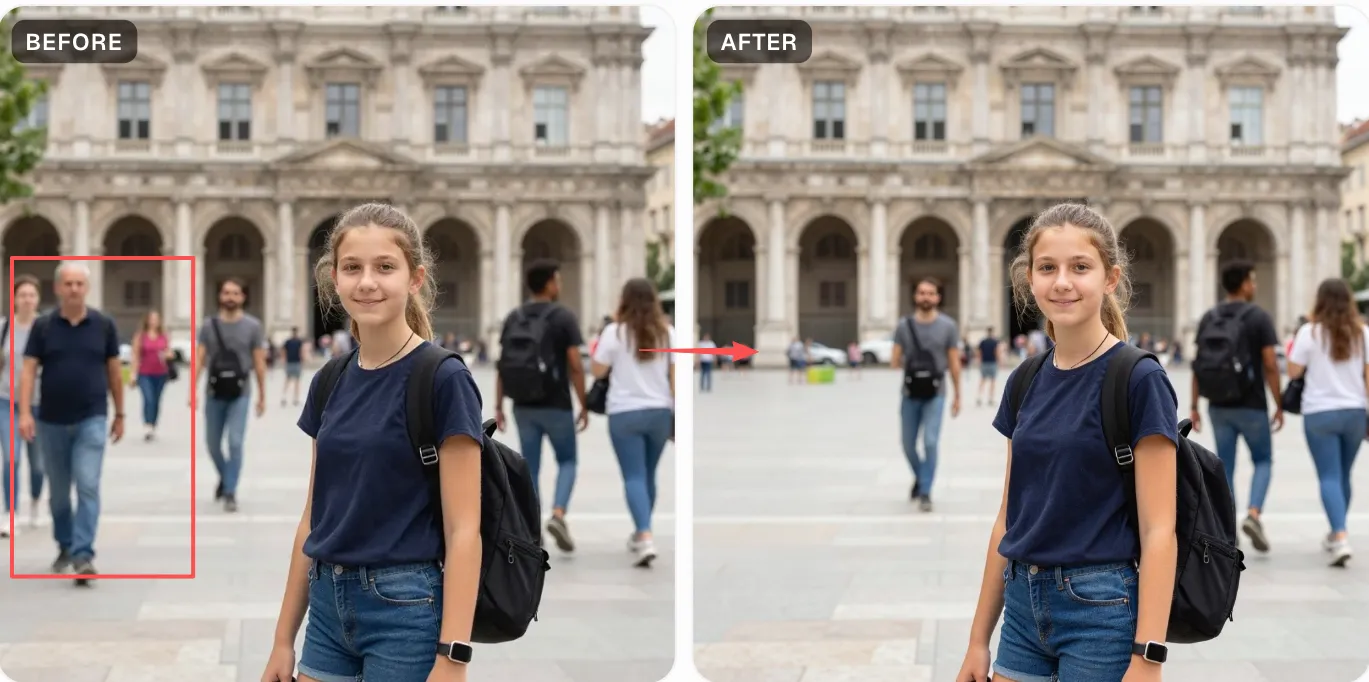
- 2
Brush over every person you want gone
Paint across each photobomber, tourist, or background pedestrian — cover the full body: head, limbs, and any shadow they cast. A larger brush (80–120 px) sweeps a tight crowd in one motion; drop to 40–60 px to isolate a single person standing next to your subject. Leave 6–10 px of margin around each silhouette so the AI has surrounding context to rebuild from. Undo and Clear sit in the side panel if you over-paint.
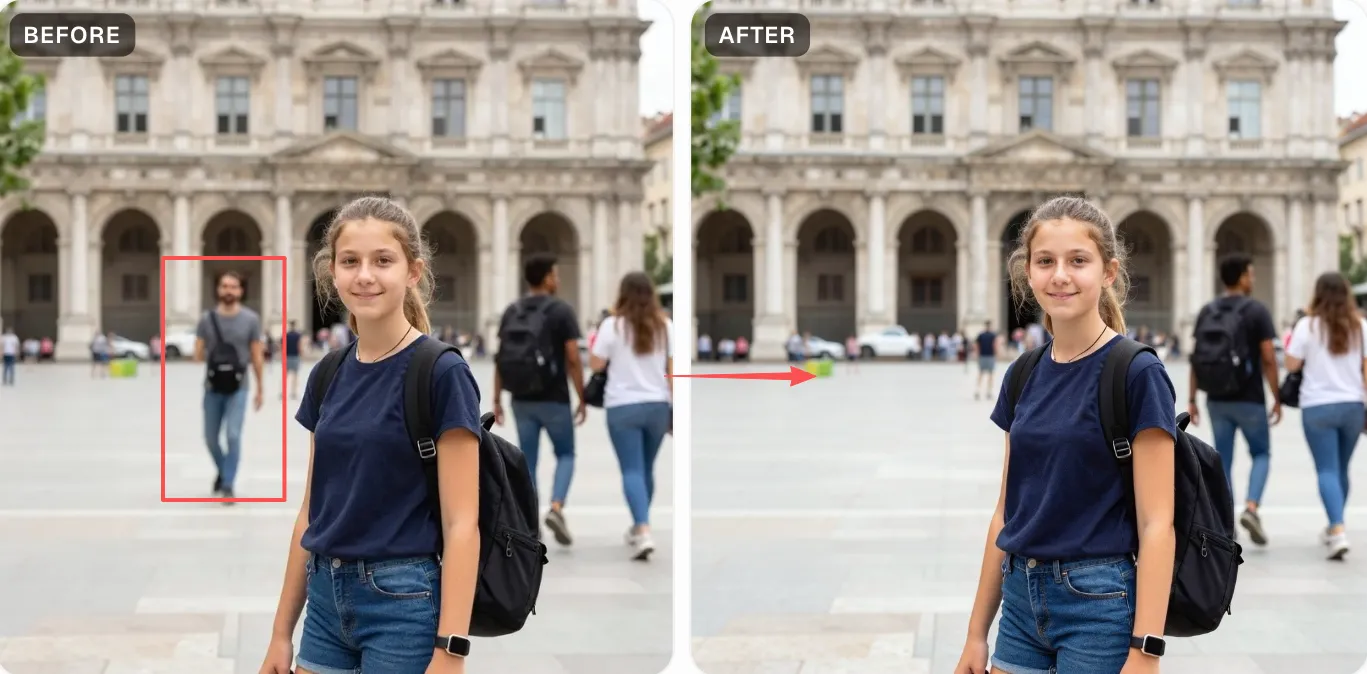
- 3
Tap Remove and download
Press Remove. In roughly 20–30 seconds the AI redraws the masked region with a believable continuation of whatever was behind the people — sky, water, pavement, wall, or foliage — then hands you a full-resolution, watermark-free PNG to download. If one area still looks off, use Continue edit to paint over just that spot and run a second, cleaner pass.
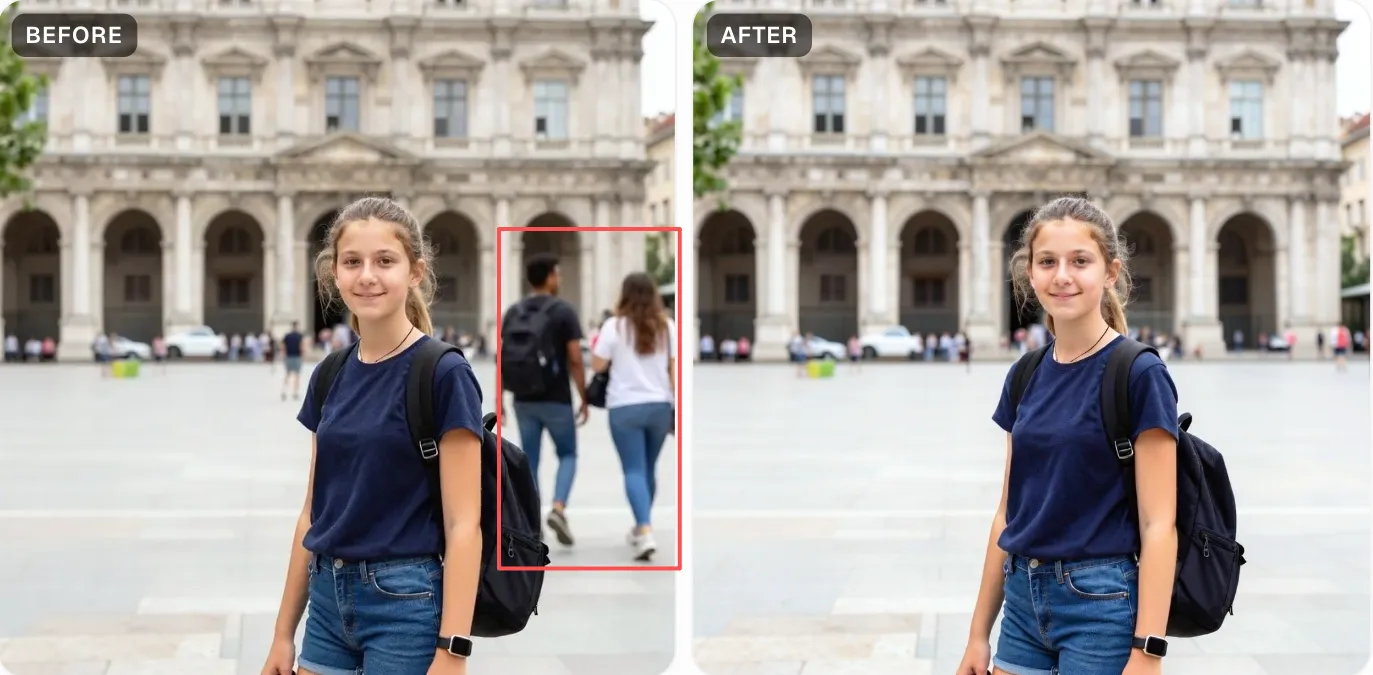
The pass-by-pass trick for a cleaner result
Here is the part most people miss. When you mask an entire crowd in one go, the AI has to invent a large, complex region all at once — and the more edges it has to reconcile, the more likely a smear or a ghosted shape slips through. Instead, treat it like cleaning a window: a few wipes at a time.
- Pass 1 — erase the two or three most obvious people, the ones closest to your subject. Tap Remove and look at the fill.
- Pass 2 — hit Continue edit, then brush whatever is left — distant figures, a leftover shadow, a stray limb at the frame edge. Each pass works on a now-cleaner background, so the fill keeps improving.
- Pass 3 — touch up tiny artefacts. Painting one small spot is faster and more accurate than re-doing the whole image.
Three small passes routinely beat one big mask, and because each pass on the free tier is quick, you rarely use more than one of your daily removes to finish a single photo.
Four tips for the cleanest erase
- Work in passes, not one giant mask. Removing two or three people per run and re-checking the result almost always beats brushing an entire crowd at once — the AI has fewer competing edges to invent.
- Brush a little past the edges. Hair, fingers, and ground shadows are where leftovers show up. A 6–10 px margin gives the model the context it needs to blend.
- Keep your subject unpainted. Only the brushed pixels are rewritten, so anything you leave untouched — including the person you want to keep — stays exactly as shot.
- Favour uniform backgrounds. People standing against sky, sand, water, or a plain wall vanish more cleanly than people in front of fine repeating detail like a bookshelf or a crowd behind a crowd.
AI people remover vs. doing it by hand
| Task | Manual editor | AI people remover |
|---|---|---|
| Erase a background tourist | 5–15 min of clone-stamp and healing in Photoshop | ~30 seconds, brush and tap once |
| Clear a whole crowd | Tedious, often leaves smears on busy backgrounds | Brush in passes; AI rebuilds the scene each time |
| Skill required | Masking, layers, and blending know-how | None — if you can highlight text, you can do this |
| Cost | Paid editor subscription | Free: 2 a day without signup, 2 after sign-in |
Frequently asked questions
Try it on your own photo
Erase tourists, photobombers, and background crowds in seconds — free, no signup, no watermark on the result.
Remove people from a photo →