
Remove Passersby from Photo
Brush out background passersby, photobombers, tourists, and random strangers, and the AI rebuilds the scene while your subject stays sharp. Free, no signup.
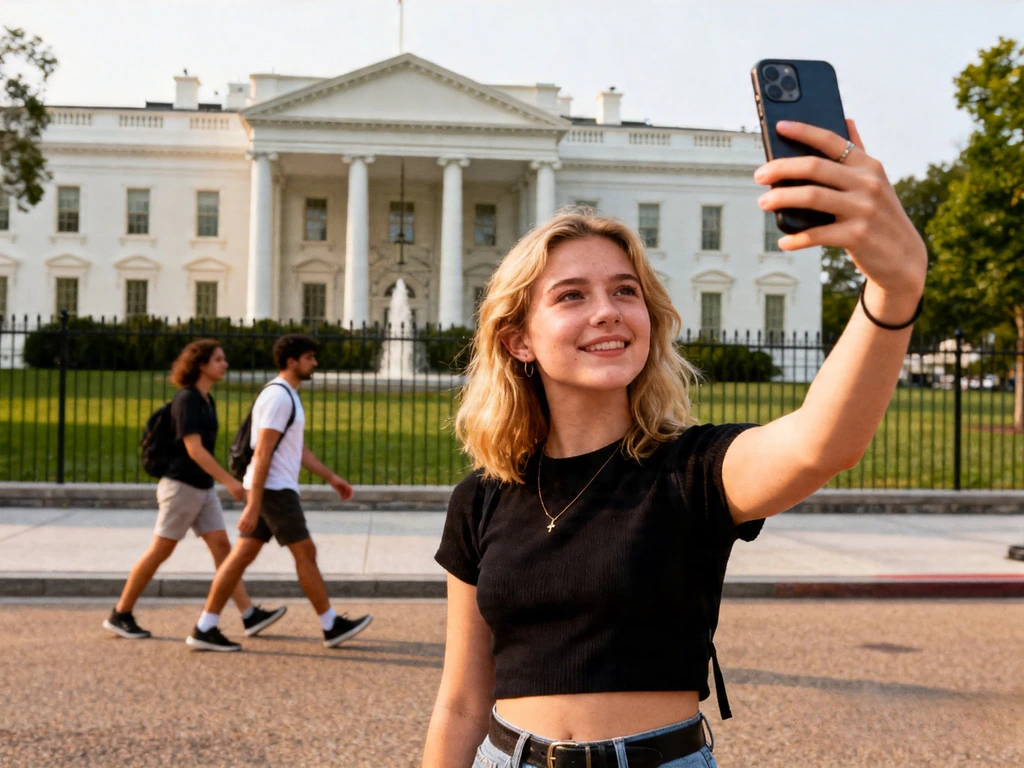

Before / After
Passersby removed
Before & after
In short
To remove passersby from a photo free: upload the picture, brush over every background stranger, photobomber, or tourist — including their shadow and any reflection — and tap Remove. In about 20–30 seconds the AI rebuilds the scene behind them while your subject stays untouched. You get 2 a day free, 2 after a Google sign-in, no watermark on the result. Cleanest results come when the passersby are well behind your foreground subject.
The passersby problem in everyday photos
Some of the best photos are spoiled by people you never wanted in them: tourists wandering through a landmark shot, a photobomber stepping into the edge of a street portrait, strangers sunbathing behind your beach photo, a row of festival-goers cluttering the background of a concert picture. You can’t ask a crowd to clear, and waiting for an empty frame at a busy attraction is hopeless.
Removing those background passersby used to mean cloning them out by hand in Photoshop — slow, fiddly work on every stranger and every shadow. A generative AI eraser does it in one pass: brush the passersby and the model reconstructs whatever was behind them, whether that’s sky, sea, pavement, a wall, foliage, or the landmark itself. Your subject in the foreground is never touched.
It works best when the passersby sit clearly behind your subject against a forgiving background. Distant tourists against sky or water vanish almost perfectly; a stranger overlapping your subject, or a packed crowd on ornate architecture, may need a little care along the seams. Either way, brushing the passersby and their shadows in one mask is all it takes.
Where people use it to clear passersby
Tourists at landmarks
The Eiffel Tower, the Colosseum, a temple at sunrise — places with constant tourist traffic you can't wait out. Brush the crowd of passersby behind your subject and keep the landmark clean.
Street-photography photobombers
A framed street shot ruined by one photobomber walking into the edge. Paint the stranger and the pavement, storefront, or road behind them fills back in.
Beach and pool strangers
Holiday photos with strangers sunbathing or swimming in the background. Brush the background people and the sand, water, or horizon rebuilds cleanly.
Event and concert crowds
Wide shots where festival-goers, audience members, or venue staff clutter the frame behind the performer or guest of honour. Clear the background passersby in one pass.
Theme parks and busy attractions
Disney queues, museum halls, market streets — places that are never empty. Remove the random visitors walking through your shot while your group stays put.
Real-estate and travel listings
Property and rental photos where neighbours or pedestrians wander into frame. Clean shots with no stray passersby look more professional and convert better.
How to remove passersby in 3 steps
- 1
Upload the photo with passersby in it
Drag your picture into the upload card or tap to browse. JPG and PNG both work, and anything wider than 1536 pixels is resized automatically. A landmark shot full of tourists, a street scene with a photobomber, a beach photo with strangers in the background — anything where random people clutter the frame behind your subject works here.
- 2
Brush over every passerby
Paint over each unwanted passerby, photobomber, or stranger — full body, head, limbs, plus any shadow or reflection they cast. For a tight clump of tourists, a larger brush (80–120 px) sweeps several at once; isolate a single bystander with a smaller brush (40–60 px). Add 6–10 px of margin around each silhouette so the AI has context to rebuild from. Your subject in the foreground stays untouched.
- 3
Remove and download
Tap Remove. In about 20–30 seconds the AI reconstructs the background where the passersby stood — sky, sea, sidewalk, wall, foliage, the landmark behind them. Hit Download for a clean PNG. Everyone you didn't brush, including your subject, stays exactly as they were.
Tips for cleaner passerby removal
Paint passersby as one region when they cluster
For a packed sidewalk or a row of tourists, brush the whole block of background people in one stroke rather than person by person. The AI handles a large contiguous mask with fewer seams than many small ones.
Include shadows and reflections
A passerby and the shadow they cast (or their reflection in water, glass, or a wet street) are separate to the AI. Brush the shadow and any reflection in the same mask, or you'll get an orphaned shadow with no one to cast it.
Easiest when passersby are well behind your subject
When the strangers are clearly in the background and your subject is in the foreground, the AI has the cleanest job. When a passerby overlaps your subject — sharing a railing, brushing shoulders — paint carefully along that seam to avoid bleeding into the person you're keeping.
Uniform backgrounds rebuild best
Sky, sea, pavement, grass, and plain walls behind the passersby fill almost perfectly. Dense foliage, ornate architecture, and patterned crowds can leave soft seams worth a quick touch-up.
Questions about removing passersby
Related removers
Powered by apimodels.app — a unified AI image generation API