


Before / After
Remove people from a photo, keep your subject
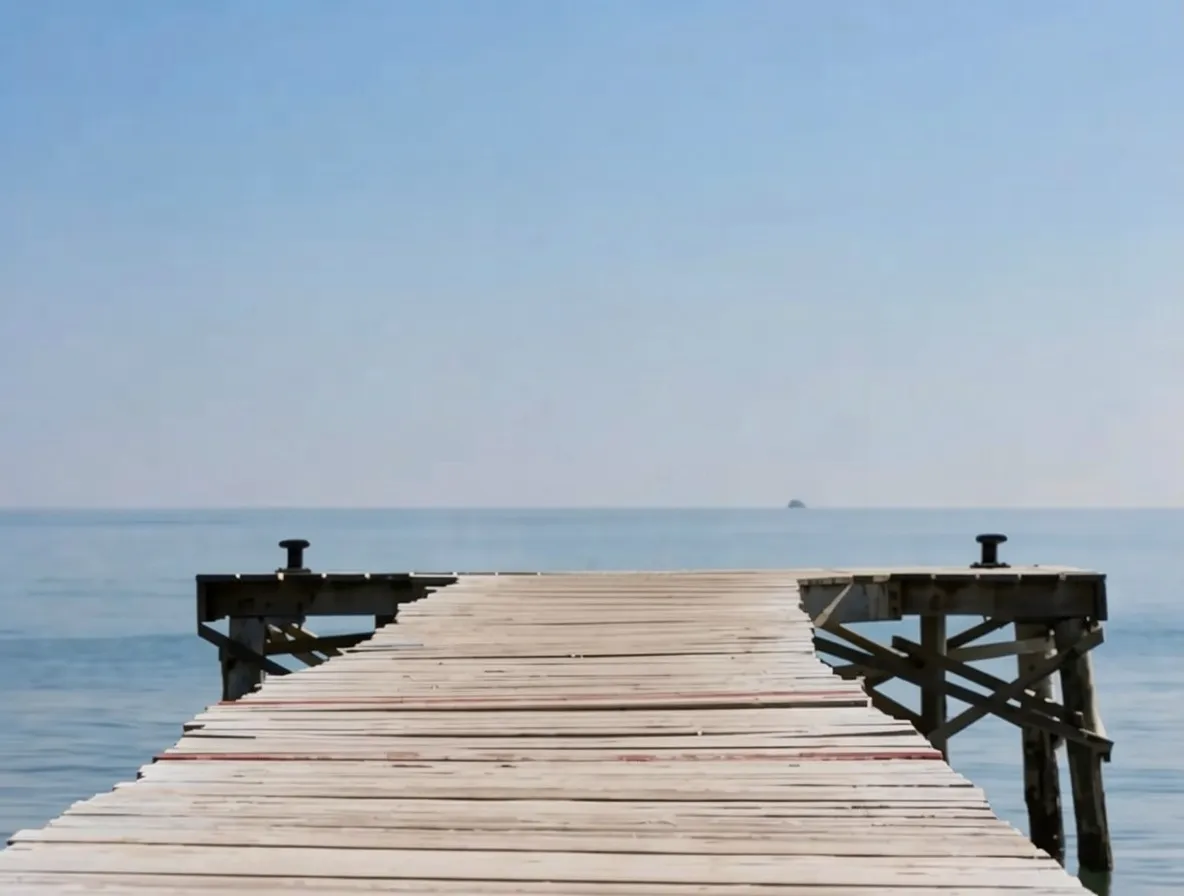
Brush the people you want gone and the AI people remover rebuilds the scene behind them — sky, wall, ground, or scenery — while your subject stays sharp. Drag the slider to compare.
Erase tourists, passers-by, and background crowds while your subject stays sharp. Free online AI background people remover — 2 removes a day without signup, 2 after you sign in.
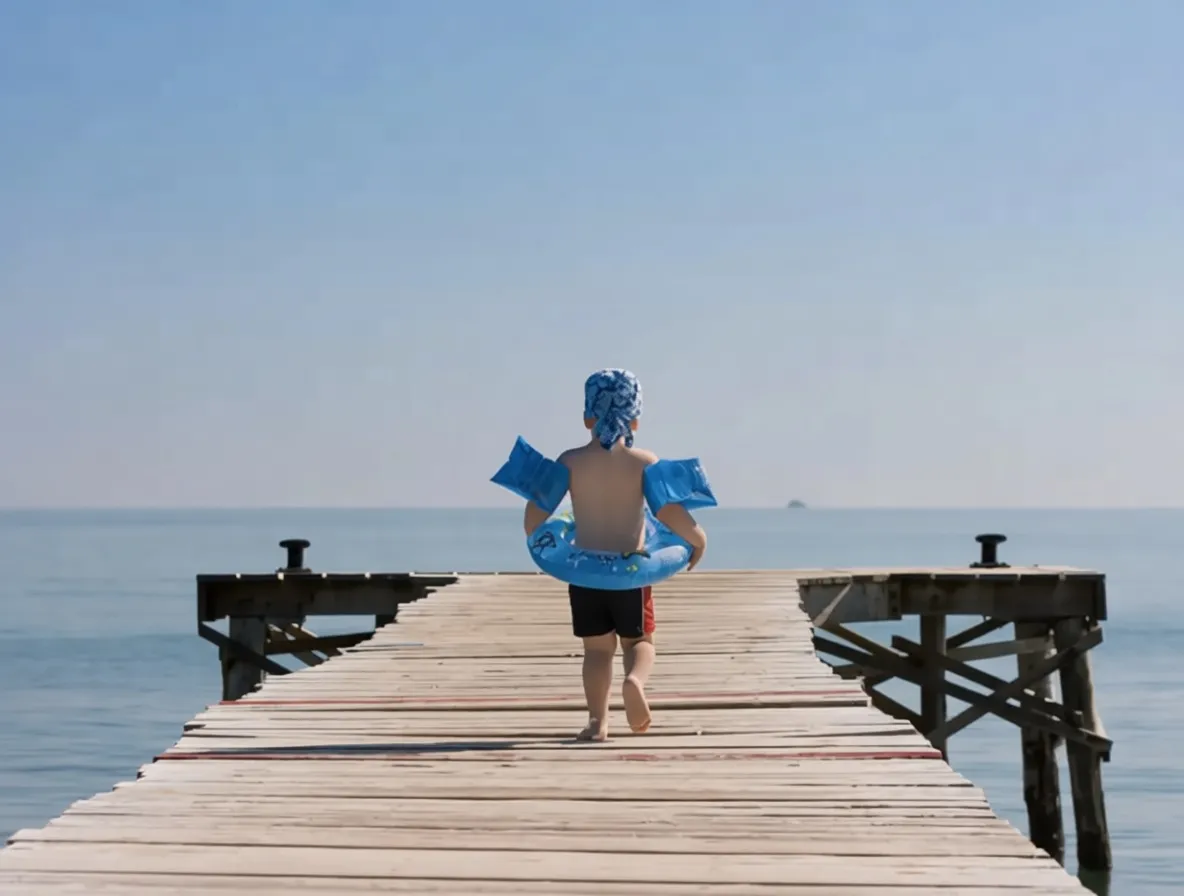
Before / After
People removed
Brush the people you want gone and the AI people remover rebuilds the scene behind them — sky, wall, ground, or scenery — while your subject stays sharp. Drag the slider to compare.
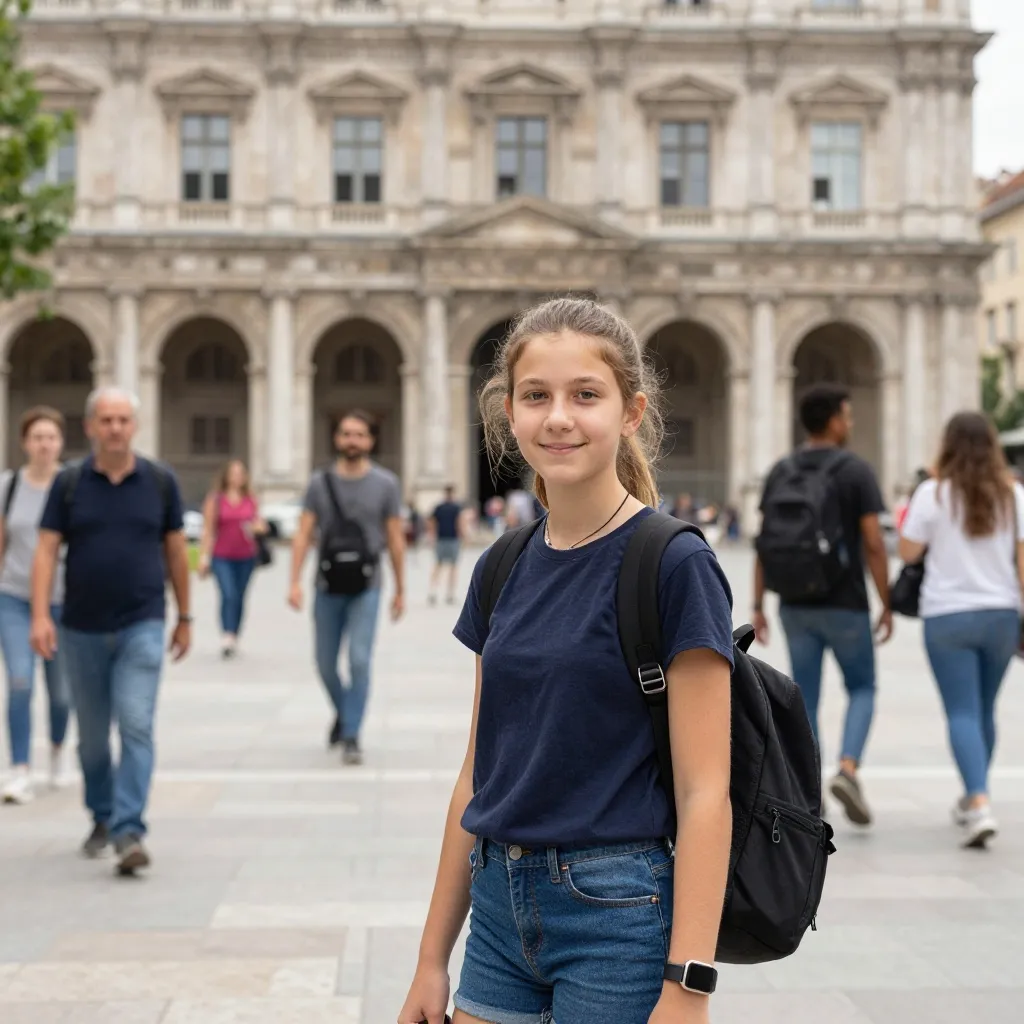
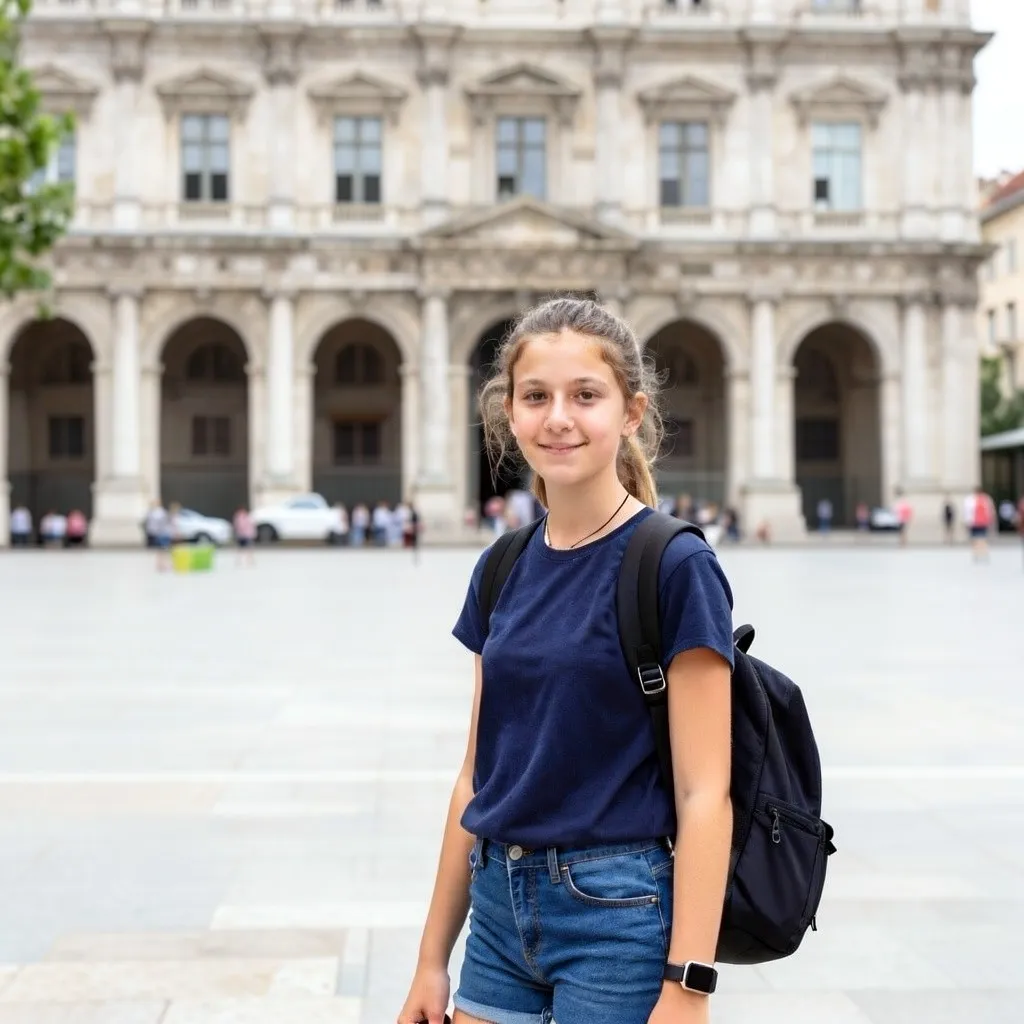
Paint a single person or a crowd; only the brushed area is rewritten, so everyone and everything you leave unpainted keeps its original look.
To remove people from a photo free: upload the picture, brush over every unwanted person — a photobomber, background tourists, a whole crowd — and tap Remove. In about 20–30 seconds the AI reconstructs the scene behind them. You get 2 a day free, 2 after a Google sign-in, with no watermark on the result. It works best when your subject is in the foreground and the people to remove sit against a relatively uniform background like sky, water, or pavement.
A landmark at sunrise with one tourist in the corner. A wedding candid where the venue's catering staff happens to walk through. The family beach day framed by someone else's swimwear silhouette. Background people are the single most common complaint about travel and event photography — they are rarely anyone's fault, and you almost never notice them in the moment. But back home looking at the picture, they are all you can see.
Cropping rarely fixes it, because the crowd usually sits just inside the composition you actually want. Smartphone portrait modes help a little by blurring the background but do not erase anyone. Manual cloning in Photoshop works but takes 10 minutes a photo and a lot of patience. A purpose-built AI background people remover is faster than all of those — paint, wait, done.
MagicRemover runs a generative AI model under the hood. Rather than just inferring from surrounding pixels, it invents a plausible continuation of the scene — so it’s especially strong on large, complex regions like tightly packed crowds or figures against busy backdrops, where simpler erasers would struggle. It accepts any input aspect ratio and returns the result at that aspect ratio.
Prefer a deeper walkthrough? Read the full step-by-step guide to removing people from a photo, including the pass-by-pass trick for the cleanest result.
Upload your photo
Drag your picture into the upload card or tap to browse. JPG and PNG are fine; anything wider than 1536 pixels is resized automatically before it hits the AI. Travel shots, wedding shots, concert photos, street scenes — anything with unwanted people in it works here. Group shots where the subject is centre-frame and the crowd is in the background get the cleanest results.
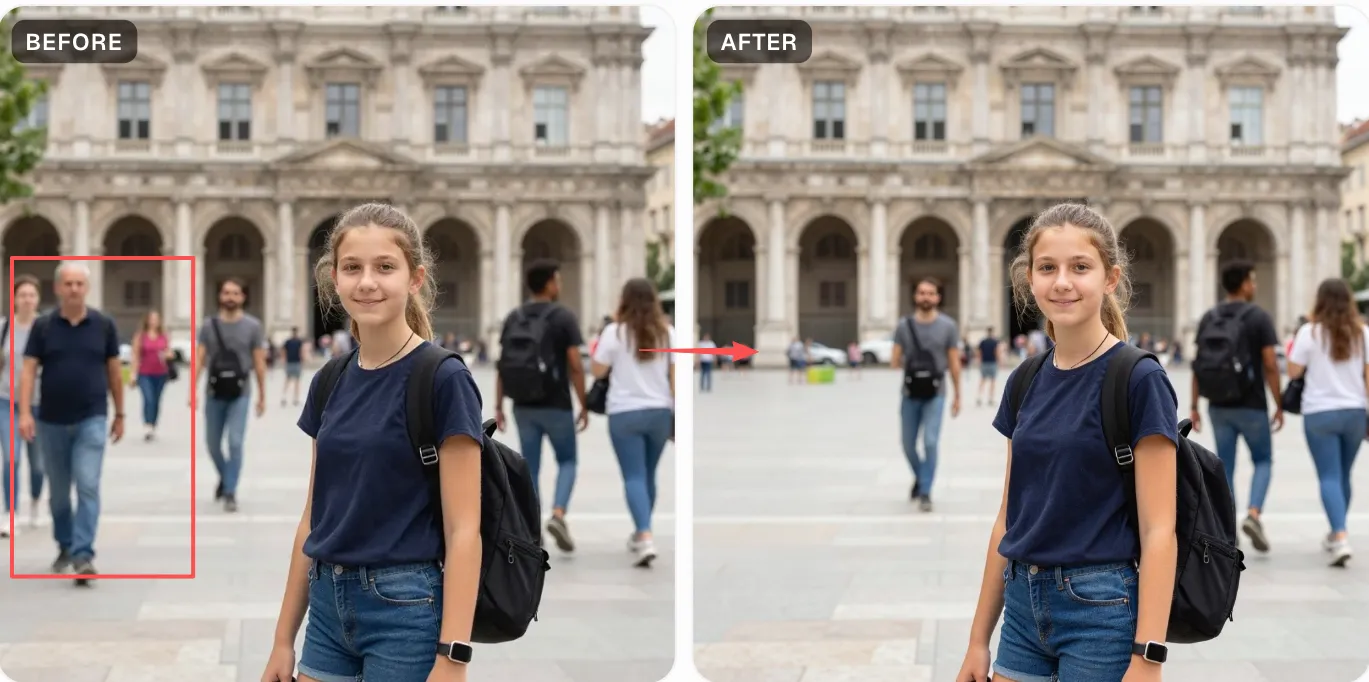
Brush every unwanted person
Paint over each photobomber, tourist, or pedestrian — full body, head, limbs, everything you want gone. For a tight crowd, a larger brush (80–120 px) covers multiple people at once; isolate individuals with a smaller brush (40–60 px). Always add 6–10 px of margin around silhouettes so the AI has context to rebuild from. Undo and Clear are one tap away on the right panel.
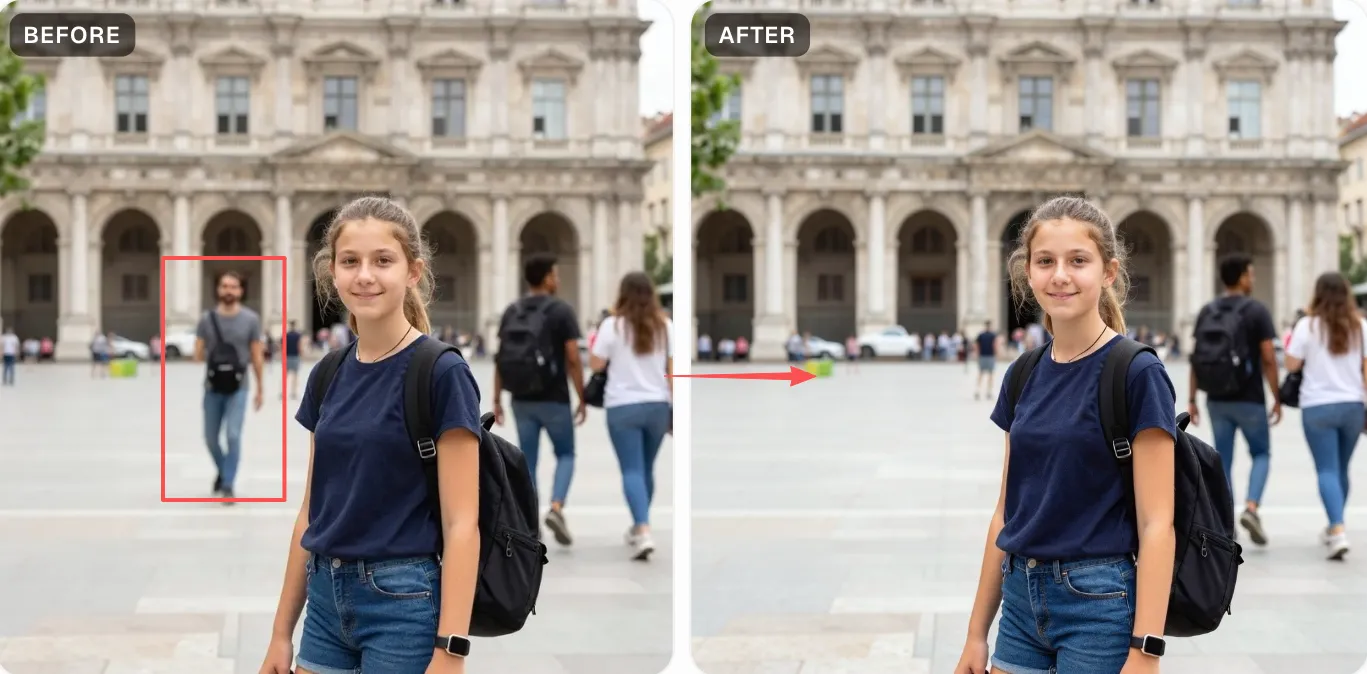
Download the clean scene
Tap Remove. The AI takes roughly 20–30 seconds to redraw the masked region with a plausible continuation of the background — sky, water, sidewalk, wall, foliage, whatever was behind the people. Hit Download to save as PNG. The result keeps your photo's aspect ratio and comes back at a high resolution.
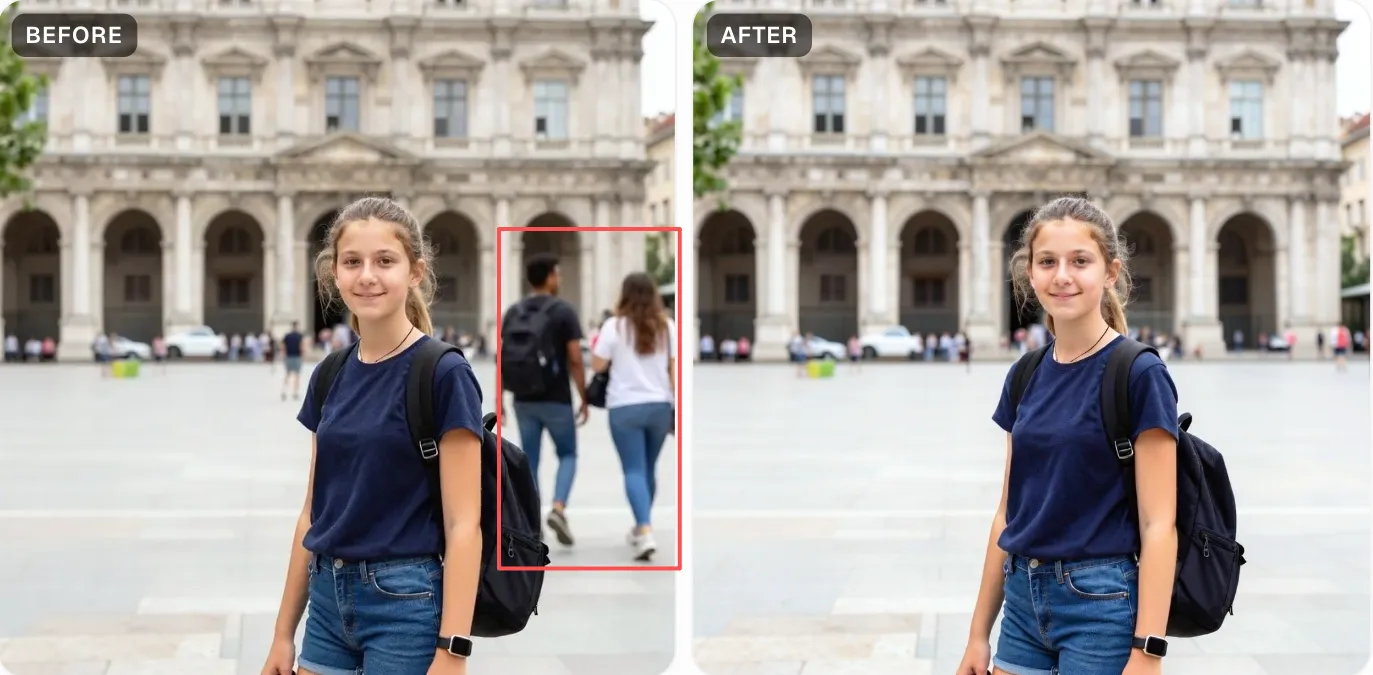
Travel and landmark shots
The Eiffel Tower, the Grand Canyon, a temple at sunrise — scenes with permanent tourist traffic you cannot dodge. Brush the crowd, keep the landmark.
Street-photography cleanup
A framed composition ruined by one photobomber in the corner. Paint them, the background (road, building) fills in cleanly.
Venue and concert photos
Wide shots where the audience or venue staff clutter the frame behind the performer or guest of honour.
Family snaps with bystanders
A kids' birthday at the beach with strangers in swimwear in the background; a hiking photo with other trekkers in the distance.
Real estate and property shots
Listing photos where passers-by or neighbours wander into the frame. Clean shots rank better on listing sites.
Wedding ceremony reference photos
The official photographer handles the main shots; your candid reference pics often have catering staff or other guests in the wrong place. Clean them for a family album.
Brush generously around heads and shadows
Human silhouettes are harder to erase cleanly than objects because the AI has to reconstruct context-sensitive backgrounds. Leave a pixel or two of margin — especially around hair, shadows cast on the ground, and reflections on glossy surfaces — so the model has enough to work with.
Works best when the background is uniform-ish
Sky, ocean, grass, pavement, brick walls, carpets, woodgrain — these all rebuild beautifully. Dense foliage, patterned fabric, stepped stairs, and anything highly structured can leave soft seams. For the latter, a quick manual touch-up in any image editor finishes the job.
Crowds are fine — just paint them as one region
You do not need to brush each person separately. For a packed sidewalk or concert crowd, paint the whole block in one stroke. The model handles large contiguous masks better than many small ones — fewer seams to blend.
Stand-alone subjects get the cleanest result
When your subject is clearly in the foreground and the people to remove are in the background, the AI has the easiest job. When the subject is intertwined with the person you are removing (shared handrail, overlapping limbs), the reconstruction can bleed into the subject. Paint carefully around the overlap zone.
Taking a stranger out of the shot is an erase job. Changing what a sign, banner or name tag in that same shot says is a rewrite — brush it out here and you get a blank board instead of new words. For that half, our sister site EditTextImage re-draws the lettering to match: you can edit text in an image with the same font, replace text in a photo for free on your first edit, edit text in a JPG exported from your camera, or edit text in a screenshot of the group chat before you share it.
Large uploads come back near 1 megapixel. The model handles any aspect ratio, and the result keeps that aspect ratio. It works around the 1-megapixel mark, so very large photos are processed at a bounded resolution — detail in the masked region can soften a touch on big images. For most phone uploads (after the client-side 1536-px downscale MagicRemover applies) this is imperceptible, and the output is sized for screen and web use rather than large-format print.
Unmasked regions may drift slightly. The AI is generative — it regenerates the whole image, so pixels outside your mask stay visually close to the original but are not pixel-identical; colours and fine detail may shift a hair. That tradeoff is what buys you the ability to erase large, complex, people-heavy regions that simpler erasers cannot handle.
Weird edges in mixed scenes. When the person you are removing is physically intertwined with the subject (shared handrail, overlapping limbs, leaning on a wall right next to your subject), the AI can blend parts of the subject into the fill. The best defence is to paint carefully around the overlap — err on the side of including small bits of background rather than accidentally covering your subject.
Remove Passersby from Photo
Sub-variant focused on background passersby, photobombers, and tourists behind your subject.
Free AI Object Remover
The general-purpose eraser — brush any unwanted object out of any image. Good for single objects and small regions.
Remove Watermark from Photo
AI watermark remover, tuned for long diagonal © lines and corner stamps on stock photos.
Gemini Watermark Remover
Specialised page for the sparkle mark on Google Gemini AI-generated images.
Powered by apimodels.app — a unified AI image generation API