
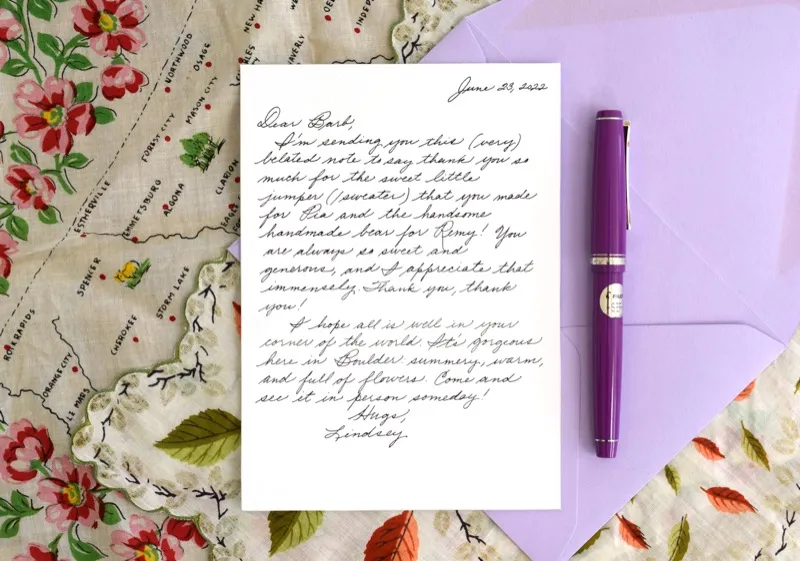
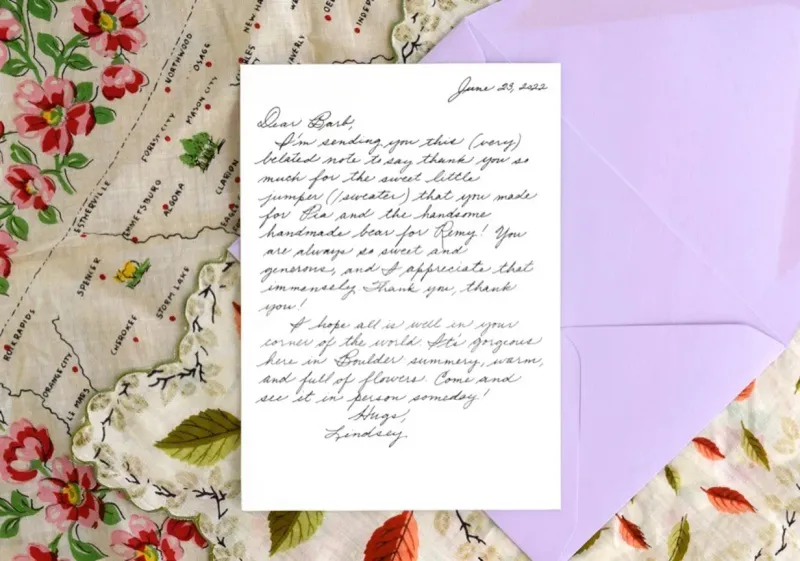
Before / After
Remove an unwanted object from a photo
Brush over the object you want gone and the AI object remover fills the gap with a natural continuation of the background. Drag the slider to compare before and after.
Erase any unwanted object — signs, cables, trash, gear, clutter — with AI generative fill. Strong on large or complex shapes that simple erasers struggle with. 2 free removes a day, 2 more after sign-in.


Before / After
Object removed
Brush over the object you want gone and the AI object remover fills the gap with a natural continuation of the background. Drag the slider to compare before and after.


Signs, cables, bins, bags, or stray clutter — paint them out and the surrounding texture, colour, and lighting carry straight through the gap, with no smear or ghost outline.
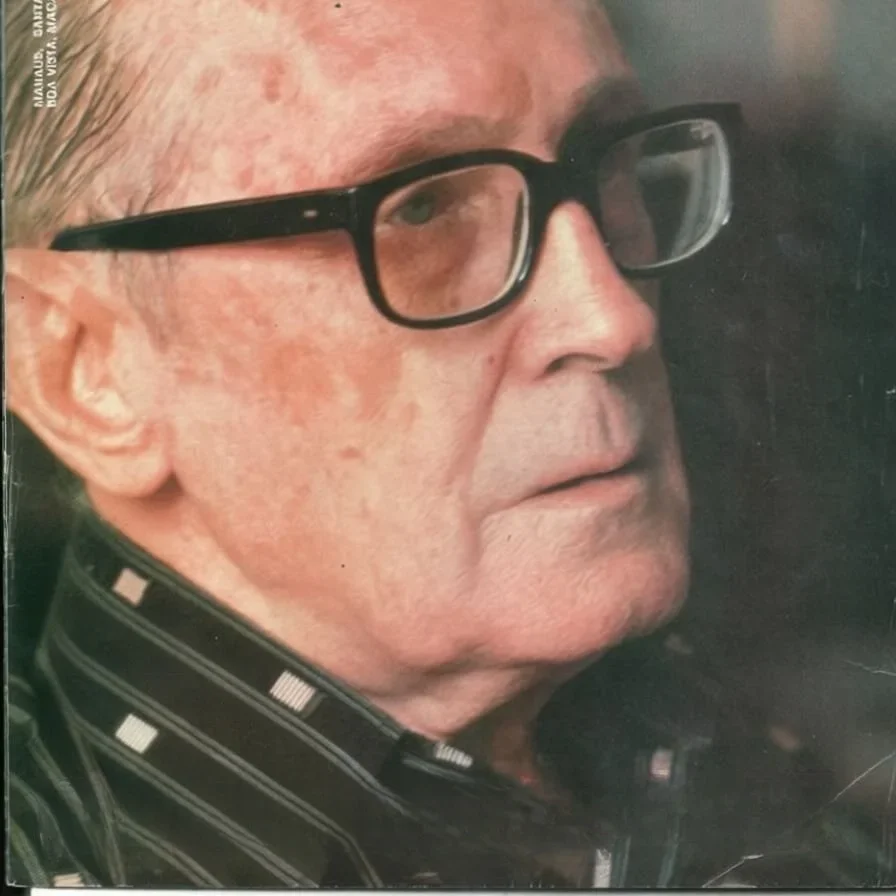
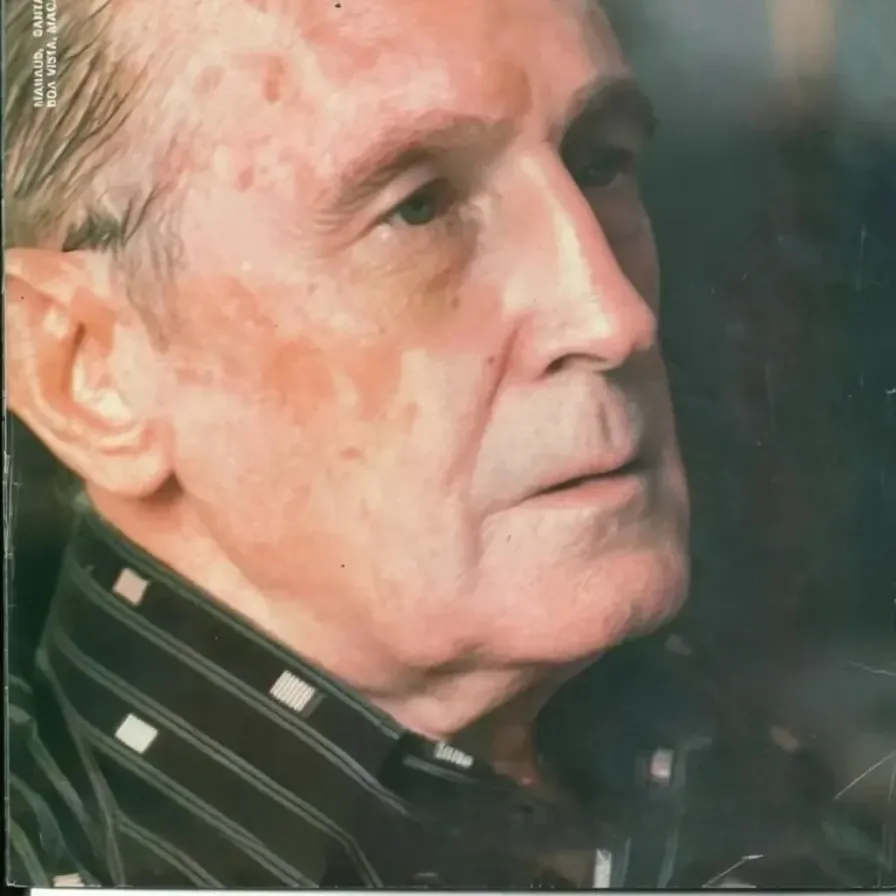
Even an object in front of a detailed scene comes out cleanly: the generative fill blends the rebuilt area into its surroundings so the removal is invisible.
To remove an object from a photo free: upload the image, brush over the unwanted thing — a sign, a wire, a bin, a stray person, any clutter — and tap Remove. In about 15–20 seconds the AI rebuilds the background where the object was. You get 2 edits a day free, 2 after a Google sign-in, with no watermark on the result. It works best when the area behind the object is fairly uniform; intricate backgrounds may need a light touch-up.
Older object-removal tools work by extrapolating from surrounding pixels — fast and surgical when the background is simple, but they smear or leave ghost lines on anything large or complex. A generative model takes a different approach: instead of only copying nearby pixels, it redraws the masked area from the surrounding context, inventing a plausible continuation of the scene. That makes it dramatically better on large, complex, or overlapping objects.
This page runs a generative AI model with a prompt tuned for general object removal — it’s told nothing about what kind of object you’re removing, just to make the painted region blend seamlessly into its surroundings. That generality is what lets it handle an abandoned bicycle on a brick street as comfortably as a trash can on a grass lawn.
The trade-off of any generative model is that it regenerates the whole image, so areas outside your brush stay visually consistent rather than pixel-identical. For everyday photos that difference is imperceptible, and it buys you the ability to erase things simple tools can’t. The homepage Object tool runs the same AI on the same free daily pool — this page just adds guidance and examples.
Upload the photo
Drag any JPG or PNG into the upload card, or tap to browse. The tool accepts any aspect ratio — the AI handles portrait, landscape, square, and panoramic inputs natively. Images larger than 1536 px on the longest edge get client-side downscaled before upload; you do not need to resize beforehand.
Brush over the object plus margin
Paint every pixel of the thing you want gone — the whole outline, including any shadow on the ground or reflection on water. Add 6–10 pixels of margin around the edge so the AI has clean surrounding context to rebuild from. For big or tall objects, a larger brush (80–120 px) covers in fewer strokes. Undo and Clear are on the right panel if you overshoot.
Download the generative fill
Tap Remove. The AI takes ~20–30 seconds to redraw the masked region with a plausible continuation of the scene — grass, sky, pavement, fabric, whatever fits. The result comes back at your photo's aspect ratio. Hit Download to save as PNG.
Large objects across the frame
Parked cars, picnic tables, benches spanning a big area — simpler erasers give up. The AI has enough capacity to invent coherent grass / pavement / walls underneath.
Objects in front of detailed backgrounds
A sign in front of a brick wall, a bag on a patterned rug, a bottle on a forest floor. The AI matches texture and lighting closely instead of smearing the area.
Overlapping objects
Cables crossing a fence, signs layered over tree branches — a generative model handles these where simple reconstructive erasers leave ghost lines.
Objects with hard shadows
Paint the object + its shadow together. The AI redraws the ground with matching lighting, so the scene looks naturally unlit rather than half-lit.
Sometimes you don’t want the object gone — you want it moved, resized or reused in another design. Erasing throws it away. Our sister site LayerGrab does the opposite: name the thing and it will separate the object into its own layer on a transparent background, with the space behind it filled in the same way this page fills it. If you want every element pulled apart at once, its image layer separator splits a single photo into up to 16 layers.
Paint generously, include shadows and reflections
The single biggest factor in result quality is mask coverage. A tight mask leaves the object's shadow or reflection behind — looks like a ghost. Always paint 6–10 px past the object silhouette, and include any shadow on the ground or reflection on water / glass.
Start from the cleanest upload you have
Heavy JPG compression around the object makes the rebuild harder and can leave faint artefacts. If you have a higher-quality source — a PNG, an original export — start from that for a cleaner result.
Re-run if the first result looks overdone
Each remove is an independent generation, so if the AI invents too much texture, undo, brush a slightly tighter or wider mask, and run it again. A small change to the mask often produces a noticeably cleaner fill.
Output comes back near 1 megapixel
The AI returns the result at your aspect ratio around the 1-megapixel mark. Very large uploads are processed at a bounded resolution, so expect mild softening in the masked region on huge photos — for screen and web use it stays sharp.
Pixel-perfect preservation
Because the AI is generative, it slightly redraws the whole image, not just the masked area. For most photos that's imperceptible, but it isn't a byte-exact tool — the change is concentrated on what you brush, while the rest stays visually consistent rather than pixel-identical.
Very small fine objects on busy backgrounds
Tiny text on dense foliage, fine wires in a detailed scene — large-scale generation can soften or miss these. Brush carefully, zoom in, and expect subtle removals to be the hardest case.
Strict colour matching
Studio product photography where precise colour reproduction matters. The AI can shift colours slightly in the rebuilt area, so double-check critical product shots after a remove.
Free AI Object Remover
The homepage version of this tool — the same AI, a quick starting point for simple removals.
Remove People from Photo
Same AI, framed for clearing crowds and photobombers specifically.
Remove Watermark from Photo
AI watermark remover — diagonal © lines, corner stamps, signatures, and logo overlays.
Powered by apimodels.app — a unified AI image generation API