
Remove Person from Photo
Brush out one specific person — an ex, a stranger, a single photobomber — and the AI rebuilds the scene while everyone else stays sharp. Free, no signup.

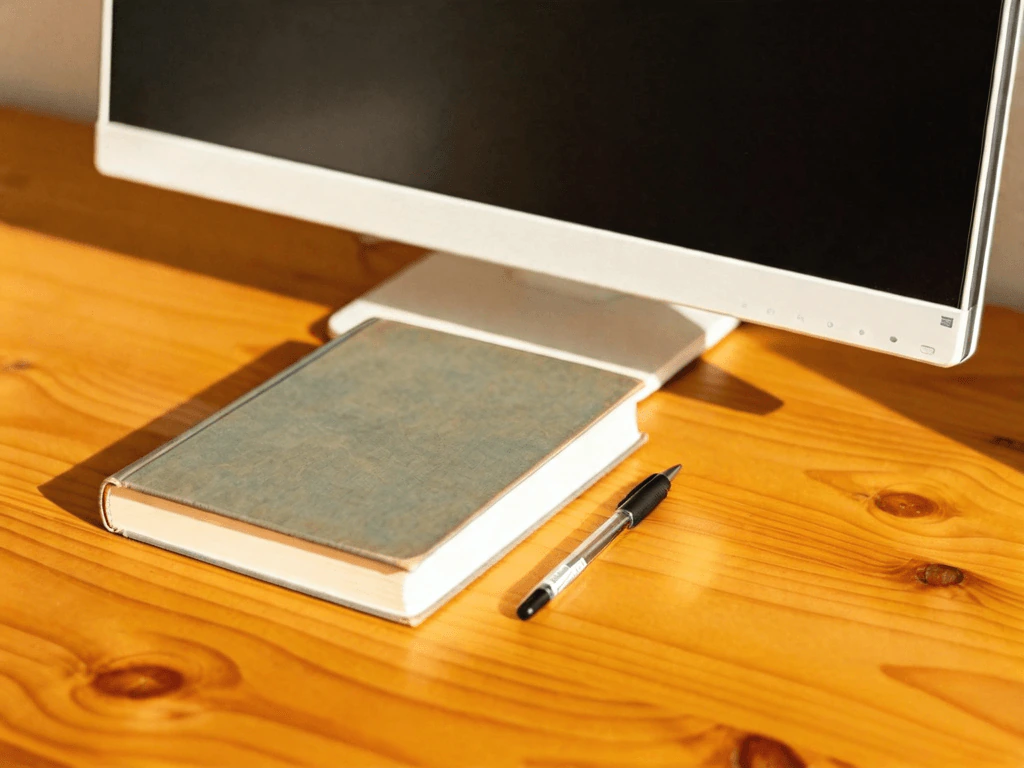
Before / After
Erase unwanted objects and clutter
Before & after
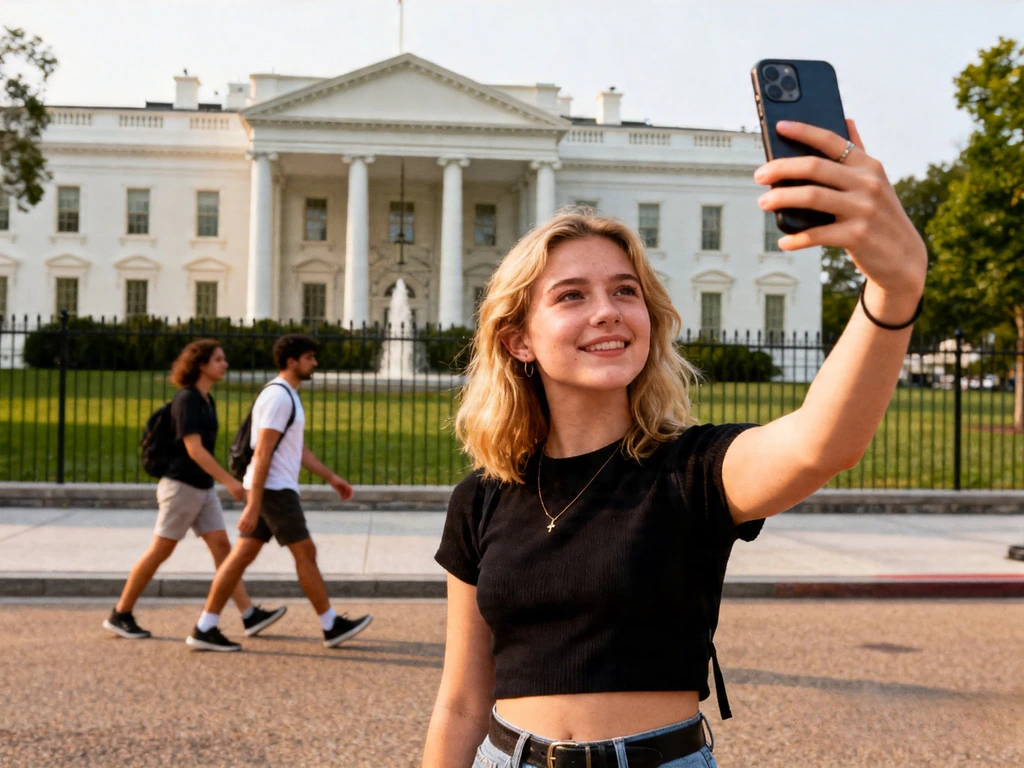
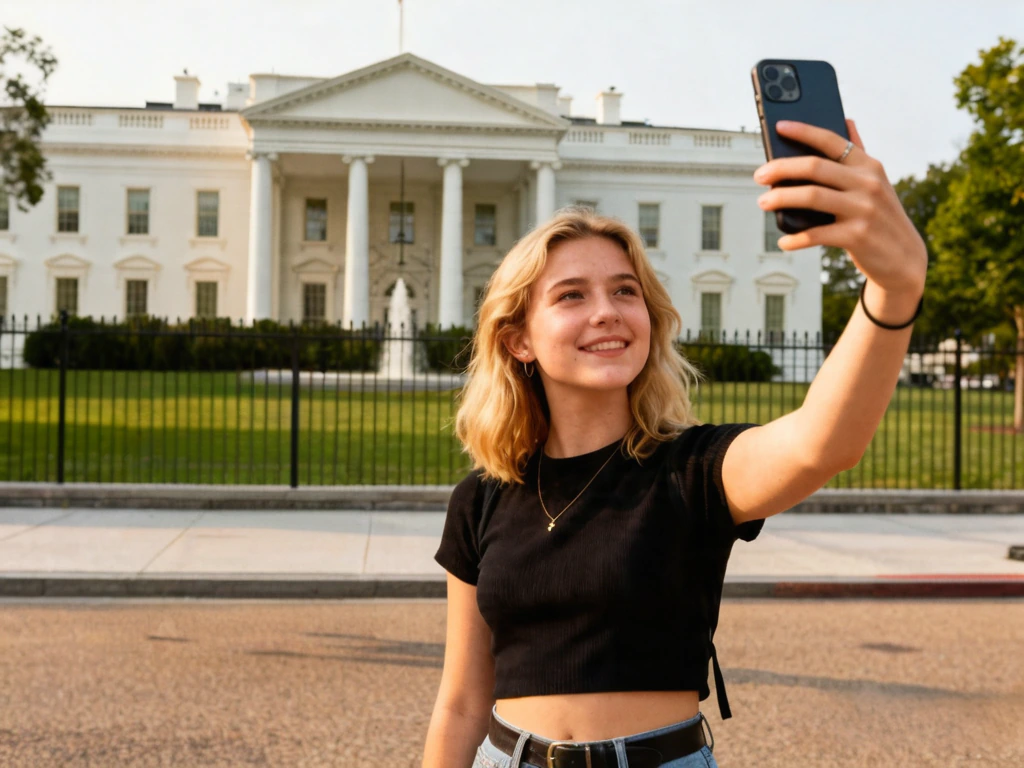
In short
To remove one person from a photo free: upload the picture, brush over just that person — including their shadow and any reflection — and tap Remove. In about 20–30 seconds the AI rebuilds the scene where they stood, and everyone you didn’t brush stays untouched. You get 3 a day free, 5 after a Google sign-in, no watermark on the result. Clean results come easiest when the person stands apart from those you’re keeping.
Removing one person, not a crowd
Clearing a whole crowd and removing a single, specific person are different jobs. With a crowd you sweep the brush across a block of background figures and let the AI rebuild the scenery. With one person — an ex in a couple photo, a stranger who wandered into your portrait, the one guest in a group shot you’d rather not keep — the work is about precision: take out exactly that figure and nothing else.
The easy version is when the person stands clearly apart, against a forgiving background like a wall, the sky, or a beach. Brush them plus their shadow, and they vanish into a seamless fill. The harder version is overlap. When the person you’re removing was touching someone you’re keeping — a hand on a shoulder, arms around each other — the AI has to invent the part of your subject that was hidden behind them. The result is usually convincing, but brushing carefully along that seam, and finishing with a light touch-up, is what turns a good result into a clean one.
One detail people miss: shadows and reflections. A person and the shadow they cast are separate pixels to the AI, so removing the figure but leaving the shadow gives you a shadow with no source. Include the shadow — and any reflection in water, glass, or a mirror — in the same brush mask, and the removal reads as natural.
How to remove a person in 3 steps
- 1
Upload the photo
Drag your picture into the upload card or tap to browse. JPG and PNG both work, and anything wider than 1536 pixels is resized automatically. A portrait with one stranger beside your subject, a couple shot you want to make solo, a group photo with one person to drop — all work here. The cleaner the gap between the person you're removing and the people you're keeping, the better the result.
- 2
Brush only the one person
Paint over that single person — head, body, limbs, and any shadow or reflection they cast. Use a 40–60 pixel brush and add 6–10 pixels of margin around their silhouette so the AI has context to rebuild from. The key with single-person removal is precision at the edges: brush right up to (but not over) anyone you want to keep, especially where arms, shoulders, or hair overlap.
- 3
Remove and download
Tap Remove person. In about 20–30 seconds the AI reconstructs the background where the person stood — wall, sky, floor, foliage, or the people and scenery behind them. Hit Download for a PNG at your upload's dimensions. Everyone you didn't brush stays exactly as they were.